
ZSNES on Mac: Running Classic SNES Games on MacOS
Install ZSNES Emulator on PC
Download NowRetro gaming on Apple hardware is easier than many people expect, especially when you approach it with a clear setup plan. This guide walks through safe sourcing, compatibility realities, and everyday tips for getting a smooth Super Nintendo emulation experience on modern Macs.
What to Know Before You Start
Because Apple has changed system security and CPU architectures over the years, it helps to identify your Mac model and MacOS version before you install anything. If you want to experiment with ZSNES on Mac, you’ll typically rely on a compatibility layer or a community-wrapped build rather than a brand-new native app.
- Check whether your Mac uses Apple silicon (M-series) or Intel.
- Confirm your MacOS version in System Settings → General → About.
- Plan for input: keyboard, Bluetooth controller, or USB gamepad.
Compatibility and Performance Expectations
Many users discover that older emulators can behave differently on recent operating systems, particularly around display modes and permissions. When people mention ZSNES on MacOS, they usually mean running it through tools like Wine-based wrappers or similar solutions that translate Windows apps for MacOS.
To keep frame pacing stable, close heavy background apps and avoid forcing extreme scaling filters at first. Start with default video settings, then tweak one option at a time so you can easily identify what improves or worsens performance.
Choosing a Setup Method
There are a few common paths: a packaged wrapper, a Wine configuration you control, or a virtual machine for maximum isolation. If your priority is convenience, ZSNES Emulator on Mac setups that come bundled with a wrapper can reduce the amount of manual configuration you need.
A reliable rule: change one setting, test for five minutes, and only then change the next setting—this prevents “mystery fixes” that are hard to reproduce later.
Installation Checklist
Before launching any emulator, create a dedicated folder structure so your saves and ROM library remain organized. Many people search for a Mac ZSNES Emulator build, but the most important detail is to download only from reputable sources and scan files when possible.
- Create folders: ROMs, Saves, States, Screenshots.
- Prefer windowed mode for easier alt-tabbing and fewer display glitches.
- Map controls once, then export or back up the config file.
Controller Setup and Quality-of-Life Tweaks
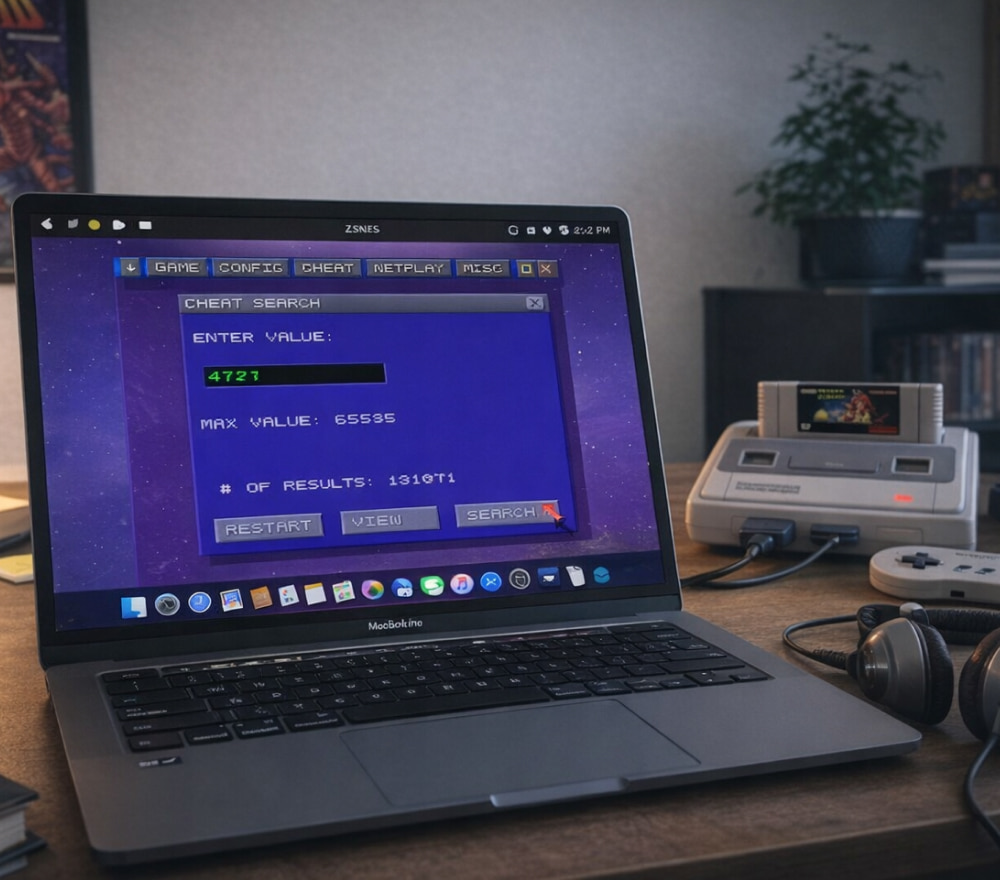
MacOS can recognize many controllers automatically, but emulators may still need manual button mapping. On a laptop, ZSNES on MacBook use is often most comfortable with a compact Bluetooth controller and headphones to keep the setup portable.
If audio crackles, try lowering sample rate changes, disabling unnecessary enhancements, or switching audio output devices. For visuals, begin with integer scaling if available, and avoid aggressive filters until you confirm the game runs smoothly.
Where to Get ZSNES for Mac Safely
Only download software from sources with a strong reputation in the emulation community, and avoid “one-click mega packs” that bundle unrelated installers. When you look for a ZSNES Emulator download for Mac, treat any site that forces suspicious browser extensions or “helper” downloads as a red flag.
After downloading, keep the application quarantined in a separate folder until you confirm it opens as expected. On MacOS, you may need to approve the app in Privacy & Security if Gatekeeper blocks it, especially with older or wrapped applications.
Quick Troubleshooting Table
Small configuration adjustments can fix most issues without requiring a full reinstall. If you see repeated requests for permissions or missing file paths, double-check where the wrapper is storing config and save data.
| Issue | Likely Cause | Fix |
|---|---|---|
| Black screen on launch | Incompatible video mode | Switch to windowed mode and change renderer options |
| No audio or crackling | Audio device/output mismatch | Select the correct output device and reduce audio enhancements |
| Controller not detected | Missing input mapping | Rebind controls inside the emulator and restart it |
| Save files not appearing | Wrong save directory | Set a dedicated Saves folder and verify write permissions |
Library Management and Best Practices
Keep ROM names consistent, group titles by region or series, and back up saves regularly—especially if you use save states. If you’re migrating from another device, avoid mixing save formats until you confirm the game loads correctly. When searching for ZSNES for Mac download options, it’s smart to compare notes from multiple trusted communities so you can spot outdated packages or misleading mirrors.
Legal and Ethical Notes
Emulators are generally legal in many regions, but game ROM distribution is often restricted by copyright. The safest approach is to use ROM dumps you created from games you own, and to respect local laws and rights holders. Once everything is configured, you’ll have a stable retro setup that’s easy to maintain and pleasant to use for quick sessions or long playthroughs.