
ZSNES on Linux: A Guide to Running a Classic SNES Emulator
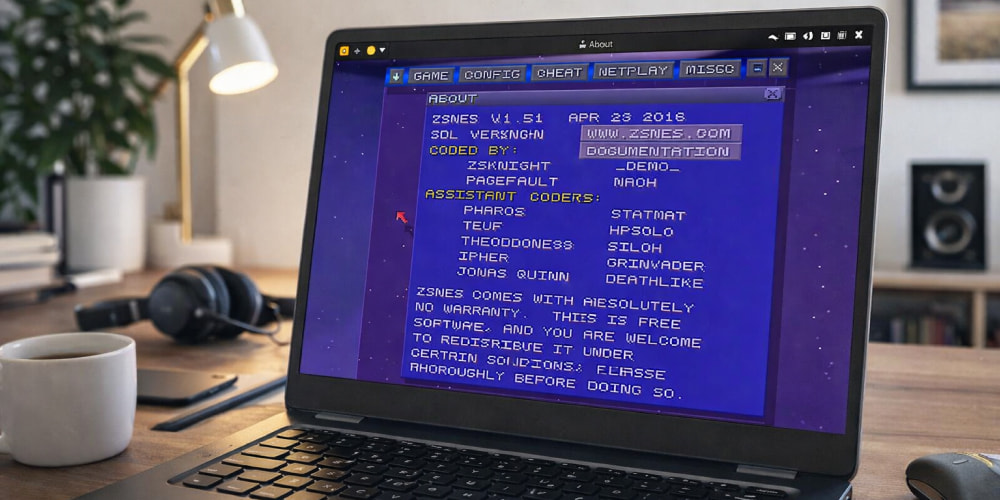
Install ZSNES Emulator on PC
Download NowZSNES is a well-known Super Nintendo emulator with a long history, and many players still enjoy it for quick sessions and nostalgic familiarity. On modern Linux systems, the biggest hurdles are usually legacy dependencies, 32-bit compatibility, and getting stable audio/video output under current desktop stacks. This page focuses on safe, repeatable setup habits, clean folder organization, and troubleshooting patterns that work across many distributions.
Before You Begin: What to Expect on Modern Distros
- Some builds are older and may require 32-bit runtime libraries even on 64-bit machines.
- Fullscreen behavior can vary depending on your compositor (X11 vs Wayland) and GPU drivers.
- Input mapping may need manual tweaks for modern gamepads, especially if multiple controllers are connected.
A good rule of thumb is to keep the emulator, ROMs, saves, and configs in clearly separated folders, so you can migrate or roll back without losing progress.
Safe Download Habits and Folder Layout
To avoid messy permissions and hard-to-find save files, create a dedicated directory under your home folder and keep everything self-contained. A common layout looks like this:
~/Games/Emulators/zsnes/(the emulator files)~/Games/ROMs/SNES/(your game files)~/Games/Saves/ZSNES/(SRAM and save states)
When you pick a source, choosing a reputable mirror matters, and using a ZSNES for Linux download from a well-known archive can reduce the risk of broken binaries. If you are targeting a Debian-based desktop, guidance labeled ZSNES for Linux Ubuntu often implies extra steps for legacy libraries and multiarch support.
Installation Approaches That Usually Work
There are three typical ways to get ZSNES running: a native package (if available), a standalone binary placed in your home directory, or a compatibility approach for older builds. The “best” option depends on your distro version and how strict your system is about legacy components.
Option 1: Native Packages (If Your Repo Still Provides Them)
Some distributions or community repositories may still carry a build, but availability varies by release. If you install from a repository, document what you installed and where it stores configuration files so you can reproduce the setup later.
Option 2: Standalone Binary in a User Folder
Many users prefer a single folder install because it’s easy to back up and remove cleanly. A practical way to install ZSNES Emulator on Linux is to keep it inside your home directory and run it without elevated privileges.
Option 3: Compatibility Method for Legacy Builds
If a native build is unstable, an alternative is to run an older build in a contained environment. This can help when your distro has moved beyond the libraries ZSNES expects, but you still want the classic interface and behavior.
To minimize confusion between sources, it helps to download ZSNES Emulator for linux only once, then label that folder with a clear version tag for easier maintenance.
Quick Compatibility Table
| Area | Common Symptom | Practical Fix |
|---|---|---|
| Startup | App won’t launch or exits instantly | Check terminal output, then install missing 32-bit libs if required |
| Audio | Crackling or desync | Try a different audio mode, lower speed hacks, and test windowed mode |
| Video | Tearing or flicker in fullscreen | Switch renderer, enable VSync in your driver/compositor settings |
| Controls | Gamepad not recognized | Rebind inputs, unplug extra controllers, and retest mapping |
Ubuntu-Focused Notes
Ubuntu users typically run into library questions first, especially on newer releases. Make sure you know whether you’re running an older 32-bit binary, and keep multiarch packages tidy if you enable them. For a clean baseline, a ZSNES Linux install should begin with a single test ROM and default settings so you can isolate issues before you customize anything. When a guide says to install ZSNES on Ubuntu, it usually means: place the emulator in a user folder, satisfy legacy dependencies, and confirm that saves write correctly. Community posts that mention Ubuntu ZSNES often bundle tips about controller mapping, fullscreen behavior, and audio settings under PipeWire or PulseAudio.
Performance and Quality Tweaks
- Video: Start in windowed mode, then try fullscreen once the emulator is stable.
- Audio: If sound glitches appear, reduce aggressive speed settings and test a different audio output mode.
- Input: Create one mapping per controller type, and keep notes if you switch between devices.
ROM Hygiene, Saves, and Backups
Organize ROMs by series or region to keep the library manageable, and back up your save directory periodically. If you test multiple builds, store saves in a separate folder and copy them in intentionally so you always know which emulator version created them.
Troubleshooting Checklist
- Launch from a terminal to catch missing-library messages.
- Confirm the emulator folder is writable so it can create configs and saves.
- Test one ROM that you know is good before importing a full library.
- Switch windowed/fullscreen only after stable audio and input mapping are confirmed.
- Document changes so you can revert quickly if a tweak breaks stability.
With a careful setup and a consistent folder structure, ZSNES can still be enjoyable on Linux today, especially for quick retro sessions and straightforward save management.